Showing posts with label APEX. Show all posts

16 October 2024

Display JSON in APEX using APEX_MARKDOWN and JSON_TRANSFORM #JoelKallmanDay

Markdown is a plain text format for writing structured documents, and in APEX there is a built-in package that can transform Markdown notation into HTML.
With Markdown it is also possible to show pieces of code or JSON documents in a fixed size font. Having a fixed font to display JSON documents in APEX is easier to read than a non-fixed font.
The idea is to add Markdown to the JSON document and use the APEX_MARKDOWN package to convert the whole string in HTML.
Something like:

  ```json
  {"this":"that"}
  
The first line in the Markdown starts with three ticks (`) followed by "json", then the JSON document start on a new line.

To setup the example, use the following script to create a table and add some sample data. The sample data consist of three different JSON documents. Note that the first document includes a PDF file, the Base64 value representind the PDF has been shortened for brevity. In reality the Base54 value is enormous, but there is a solution for that in this post.

create table t 
(outgoing_message json) -- Oracle Database 23ai introduced the JSON datatype
/
insert into t (outgoing_message) 
values (
  '{
    "orderNumber" : "APX000328573",
    "invoiceNumber" : 2023300028,
    "salesChannel" : "Amazon",
    "file" :
    {
      "mime" : "application/pdf",
      "data" : "255044462D312E340A25C3A4C3BCC3B6C39F0A322030206F626A0A3C3C2F4C656E6774682033203020522F46696C7465722F466C6"
    }
  }'
);

insert into t (outgoing_message) 
values (
  '{
    "status" : "success",
    "message" : "The order update was successfully received."
  }
  '
);

insert into t (outgoing_message) 
values (
  '{
    "orderNumber" : "APX000328573",
    "timeStamp" : "2023-04-13T14:49:50.453269Z",
    "salesChannel" : "Amazon",
    "financialStatus" : "paid",
    "logisticStatus" : "ready for production",
    "payments" :
    [
      {
        "provider" : "Mollie",
        "date" : "2023-04-13T16:49:50",
        "amount" : 569.95,
        "currency" : "EUR"
      }
    ]
  }');
commit;

Displaying the complete Base64 string representing the PDF document does not add any value for the user looking at the JSON document and is most likey irrelevant.
Using the JSON_TRANSFORM function it is trivial to replace the comple Base64 string into something that is good enough for the user, in this example we will replace it with "<Base64Encoded PDF Document>".
Depending on the version of the database that you're using, the syntax has changed slightly from Oracle Database 19c to Oracle Database 23ai, use the following snippet:

-- Oracle Database 19c 
select json_transform (ann.outgoing_message
          ,set '$.file.data' = '<Base64Encoded PDF Document>'  ignore on missing
          returning clob 
         ) as outgoing_message
  from t ann


-- Oracle Database 23ai
select json_transform (ann.outgoing_message
          ,nested path '$' (
             set '@.file.data' = '<Base64Encoded PDF Document>' ignore on missing
            )
         ) as outgoing_message
  from t ann
;

The next step is to wrap the resulting JSON document with the Markdown tags and a new line break:

apex_markdown.to_html ('```json'||chr(10)||
This results in the following query and result:
   select json_transform (ann.outgoing_message
            ,nested path '$' (
               set '@.file.data' = '<Base64Encoded PDF Document>' ignore on missing
            )
         ) as outgoing_message
  from t ann;
  
  
<pre><code class="language-json">{
  "orderNumber" : "APX000328573",
  "invoiceNumber" : 2023300028,
  "salesChannel" : "Amazon",
  "file" :
  {
    "mime" : "application/pdf",
    "data" : "<Base64Encoded PDF Document>"
  }
}
</code></pre>

Links

23 February 2023

APEX Interactive Grid: Cell Selection as Default

When you want to copy a specific value from an Interactive Grid, you would need to change Row Selection to Cell Selection in the Actions menu.
When you don't want to expose the Actions-menu, or just to make it more convenient for your users, having Cell Selection as the Default might be more convenient.
To change this the Default, and set Cell Selection as the Default, add the following code to the Javascript Initialization Code section:

function(config) {
    config.defaultGridViewOptions = {
        selectCells: true
    }

    return config;
}

01 February 2023

Parse CSV-file in different Character Set with APEX_DATA_PARSER

When there are special characters in a CSV-file, and the file is in a different characterset than which you expect, parsing it can give unexpected results.
From different suppliers we get CSV-file, which need to be parsed and stored in the database. This is done by using APEX_DATA_PARSER.
APEX_DATA_PARSER is very flexible and allows several file-formats: JSON, XML, CSV and even native Excel XLSX.
The files are uploaded to the database (in the background) and processed. And this works like a charm,... until... one of the suppliers provided a CSV-file in a different character set, with special characters.

Below is an example of this file:

This file is uploaded to a database table with the following structure:

  Name         Null? Type          
------------ ----- ------------- 
MIME_TYPE          VARCHAR2(255) 
FILENAME           VARCHAR2(400) 
BLOB_CONTENT       BLOB  
  
The following query is used to parse the file and extract the data:
SQL> select p.col001
  2        ,p.col002
  3        ,p.col003
  4    from a
  5   cross
  6    apply apex_data_parser.parse (p_content => a.blob_content
  7                                 ,p_file_name => a.filename
  8                                 ) p
  9* /

COL001                     COL002     COL003     
__________________________ __________ __________ 
R�sselsheim am Main        3.000      624.760    
Gnutz                      1.000      139.490    
�ach-Palenberg             1.000      139.490    
Syke                       1.000      242.600    
H�kirchen-Siegertsbrunn    1.000      136.980    
Eberhardzell               1.000      233.810    
heinsberg                  1.000      67.840     
Hohndorf                   3.000      304.800    
Nidderau                   3.000      385.890    
N�n-Hardenberg             1.000      239.680    
Kl��1.000                  185.000               
K                          2.000      237.880    
W�rselen                   1.000      196.500    
Gl�ckstadt                 1.000      136.980    
Dessau-Ro�au               1.000      5.900      

15 rows selected. 
As you can see in the results above, the special characters have been removed. When a word in the first column ends in a special character, the parsing of the rest of the line is also messed up, there is a NULL in Column 3 while there should be a value.
Of course this has everything to do with the characterset of the uploaded file.

With the following command in a Terminal-window on Mac, it is possible to get information about the file, including the characterset:

  file -I name of the file
  
In my case that would yield the following results:
file -I charset.csv
charset.csv: text/plain; charset=iso-8859-1
  
This means that the file is in the characterset: ISO-8859-1

To find out which characterset this maps to in the database, the following query can help:

  SQL> select value
  2    from v$nls_valid_values
  3   where parameter  ='CHARACTERSET'
  4     and value like '%8859%'
  5* /

VALUE             
_________________ 
WE8ISO8859P1      
EE8ISO8859P2      
SE8ISO8859P3      
NEE8ISO8859P4     
CL8ISO8859P5      
AR8ISO8859P6      
EL8ISO8859P7      
IW8ISO8859P8      
WE8ISO8859P9      
NE8ISO8859P10     
WE8ISO8859P15     
BLT8ISO8859P13    
CEL8ISO8859P14    
AZ8ISO8859P9E     

14 rows selected.
  
From this list WE8ISO8859P1 is selected and passed in into the APEX_DATA_PARSER function:

SQL> select p.col001
  2        ,p.col002
  3        ,p.col003
  4    from all_csvs a
  5   cross
  6    apply apex_data_parser.parse (p_content => a.blob_content
  7                                 ,p_file_name => a.filename
  8                                 ,p_file_charset => 'WE8ISO8859P1'
  9                                 ) p
 10* /

COL001                        COL002    COL003     
_____________________________ _________ __________ 
Rüsselsheim am Main           3.000     624.760    
Gnutz                         1.000     139.490    
Übach-Palenberg               1.000     139.490    
Syke                          1.000     242.600    
Höhenkirchen-Siegertsbrunn    1.000     136.980    
Eberhardzell                  1.000     233.810    
heinsberg                     1.000     67.840     
Hohndorf                      3.000     304.800    
Nidderau                      3.000     385.890    
Nörten-Hardenberg             1.000     239.680    
Klüß                          1.000     185.000    
Köln                          2.000     237.880    
Würselen                      1.000     196.500    
Glückstadt                    1.000     136.980    
Dessau-Roßlau                 1.000     5.900      

15 rows selected.

And now all is well.

21 December 2022

APEX Calendar showing incorrect Week Number

The users of our application wanted to have the week number shown as well in the Calendar.
This can be easily done with a little bit of JavaScript. In the "Advanced" section of the Region Attributes, the is room to add "JavaScript Initialization Code".
The "Help" for this region even shows how to add week numbers in the Calendar:

Copy-and-Paste the JavaScript from the Help to the JavaScript Initialization Code and you're done:
function ( pOptions) {
    pOptions.weekNumbers      = true;
    pOptions.weekNumberTitle  = "CW ";
    return pOptions;
}
However, in our case, it didn't show the correct week number. Week number 41 and December 12 don't line up:

Add the following code to the JavaScript Initialization Code in the Advanced section of the Attributes for your Calendar region, and the week number is shown correctly:

function ( pOptions) {
    pOptions.weekNumbers      = true;
    pOptions.weekNumberTitle  = "CW ";
    pOptions.weekNumberCalculation = "ISO";
    return pOptions;
}

04 April 2022

Interactive Grid: Filter on Column that shows an Icon

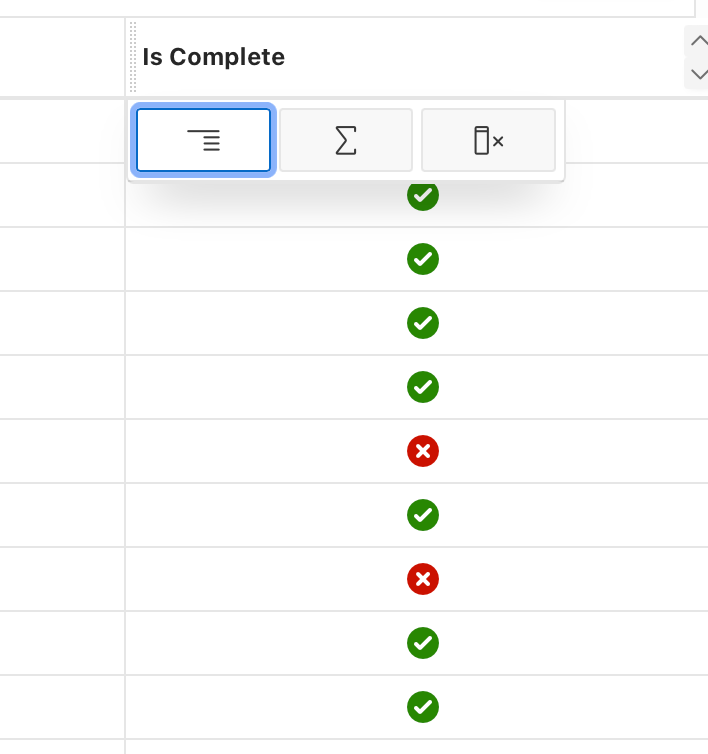
For one of our Interactive Grid we wanted to show the status of a column as an icon and still be able to filter on that column. Out of the box this is not possible. When choosing "HTML Expression" it is possible to show an icon in the column values but filtering is no longer possible.
When choosing "Text" as the column it is possible to filter on the column, but you can't specify an HTML Expression to format the column values.
Let's examine this in a little more detail and also show a solution, provided by Andreas Wismann

Let's start with the query that I will use:

select p.id as pid
      ,p.assignee
      ,p.name
      ,p.description
      ,p.start_date
      ,p.end_date
      ,case p.is_complete_yn
       when 'Y' then 'Yes'
       when 'N' then 'No'
       end as is_complete
      ,case p.is_complete_yn
       when 'Y' then 'fa-check-circle u-success-text'
       when 'N' then 'fa-times-circle u-danger-text'
       end as is_complete_icon
  from eba_demo_proj_tasks p
The last two columns (is_complete and is_complete_icon) are the ones that matter in this example. IS_COMPLETE will provide a proper English word instead of a single letter representing the status. IS_COMPLETE_ICON will translate the single letter to the appropriate icon to be shown in the column values. This column (IS_COMPLETE_ICON) will be hidden because we will use it only to format the column values.

First the plain vanilla version, no icon yet. The screenshots below show the text of the status, as well as the filter that it will produce.

Next we will change the column from "Text" to "HTML Expression", this allows to change the column value to whatever HTML you can come up with. As I want to shown an icon, this is the HTML that I used:

 <span aria-hidden="true" class="fa &IS_COMPLETE_ICON."></span>
This will result in a properly formatted column, the coveted icon that we were looking for, but it is no longer possible to filter on that column. Below are screenshots of the effect that it has.

After struggling with this problem for a while, I reached out on the Twitter APEX Community and I was very happy that Andreas Wismann replied because his solution works like a charm.

As the code doesn't show properly in the screenshot from Twitter, and also for easy Copy-Paste, this is the code that you put in the JavaScript Initialization Code of the column where you want to show the icon
function( config ) {
    config.defaultGridColumnOptions = {
        cellTemplate: '<span aria-hidden="true" class="fa &IS_COMPLETE_ICON."></span>'
    };
    return config;
}
And the final result in pictures:

10 October 2019

OGB Appreciation Day: APEX_DATA_PARSER: Flexible, Powerful, Awesome (#ThanksOGB #OrclAPEX)

For this years OGB Appreciation Day I wanted to highlight the very awesome APEX_DATA_PARSER.

At my current project one of the requirements is that CSV-files are to be uploaded by the user and the application has to figure out what type of file it is and process accordingly.
So the challenge with this is:

  • Which type of file is it?
  • What delimiter was used?

Uploading the file is straight forward enough with Application Express (APEX) and out of scope of this blog. The files are stored in a APEX Collection before they are processed.

The original procedure to determine what type of file it was and how to process it was quite cumbersome.
The file is parsed and the first line was extracted. The string which effectively was the header line of the CSV file was compared with a predefined string and based on this comparison it was determined what type of file it was.
The problem was that sometimes the header line would look like this:

      DATE_,PAYMENT_METHOD,CURRENCY,AMOUNT,STATUS,ID,DESCRIPTION
         
and sometimes it would like this:
      "DATE_","PAYMENT_METHOD","CURRENCY","AMOUNT","STATUS","ID","DESCRIPTION"
         
or maybe even sometime like this:
      "DATE_";"PAYMENT_METHOD";"CURRENCY";"AMOUNT";"STATUS";"ID";"DESCRIPTION"
         
The header line could be enclosed in quotes, or not.. The delimiter was a comma, or not...
I've simplified the example, the real header lines where a lot longer.
You can imagine that parsing the rest of the file was quite tricky, as the file content could have commas as delimiter or semi-colons or ...
Because of all the variations the procedure was quite lengthy and error prone.

Simplifying with APEX_DATA_PARSER

With APEX_DATA_PARSER things got a lot cleaner, not to mention a lot faster. The example below will only give you the gist of the procedure.

First the different header lines where declared as a record type of datatype APEX_T_VARCHAR2.

         l_file1_header apex_t_varchar2 := apex_t_varchar2 ('DATE_'
                                                           ,'PAYMENT_METHOD'
                                                           ,'CURRENCY'
                                                           ,'AMOUNT'
                                                           ,'STATUS'
                                                           ,'DESCRIPTION'
                                                           );
         l_file2_headers apex_t_varchar2 := apex_t_varchar2 ('ID'
                                                            ,'REF'
                                                            ,'ORDER_'
                                                            ,'STATUS'
                                                            ,'LIB'
                                                            );
         
Second we need to get the header line of the file that was uploaded through the APEX application.
         select column_name
           bulk collect
           into l_file_header
           from table (apex_data_parser.get_columns
                         (apex_data_parser.discover (p_content   => r_files.file_content
                                                    ,p_file_name => r_files.filename
                                                    )));
         
The APEX_DATA_PARSER offers a function to discover information about the file. The function return a file-profile and contains information about the file-encoding, file-type, how many rows it parsed, what type of delimited is used in case of CSV, etc. etc.. This function is aptly named DISCOVER.
With the APEX_DATA_PARSER.GET_COLUMNS function uses the file profile created by the DISCOVER-function to obtain information about the content: Which columns are in the file, what might the datatype be, what is the format mask that was used, in which order are the columns.
With the simple SELECT statement above we know the header columns in the uploaded file.

We're almost there..

Now that the header columns are known, we can determine how to proceed from here with a straightforward CASE statement.
Why a CASE statement you might ask. It gives a easy opportunity to raise an exception in case an unknown file is uploaded... i.e. it will raise a CASE_NOT_FOUND exception.
         case l_file_header
         when l_file1_header
         then
            process_file1;
         when l_file2_header
         then
            process_file2;
         end case;
         
The uploaded files are moved from the APEX collection to a regular heap table called ALL_UPLOADED_FILES (omitted from this blogpost).

To process the content of the file we can now do an INSERT-SELECT and drop the content into the destination table:
         insert into destination_tbl
            (date_
            ,payment_method
            ,currency
            ,amount
            ,status
            ,description
            )
         select to_date (col001, 'yyyy-mm-dd hh24:mi:ss')
               ,col002
               ,col003
               ,col005
               ,col006
               ,col007
           from all_uploaded_files fle
               ,table (apex_data_parser.parse (p_content   => fle.csv
                                              ,p_file_name => fle.csv_filename
                                              ,p_skip_rows => 1 -- skip the header line
                                              ))      
         

On a sidenote: we're using DropZone, so the file(s) are in an APEX collection which is read with the following query:
         select c001    as filename
               ,c002    as mime_type
               ,d001    as date_created
               ,n001    as file_id
               ,blob001 as file_content
           from apex_collections
          where collection_name = 'DROPZONE_UPLOAD'
         

A big thank you to the APEX team for implementing this awesome functionality! Thanks ODC!

03 January 2017

APEX: Display the Page Alias on every page - without modifying the Template

Having a Page Alias shown on the page can make communication with your end users a little bit easier. Instead of directing them to the URL and asking them for the second value shown after the "f?p", it is a little bit simpler to direct them to the location of the Page Alias, e.g. bottom left corner of your screen.
For my projects I tend to use the Page Alias as a link between my APEX front-end and my database code back-end.
Until now I always used an Application Item, a Computation and a change to the Page Template to display the Page Alias. Using this method would require changes to the Page Template, which was not a big deal.
In order to make changes to the Page Template you would have to copy the template or make changes to the Master Template. I haven't tried the latter, but there is a risk with copying the Page Template:
Unsubscribed templates are editable and will not get overwritten by a theme refresh.

Going through the Oracle APEX documentation, I stumbled upon a Substitution String that I haven't seen before, APP_PAGE_ALIAS. I don't know when this was introduced, but it makes it a bit easier to include the Page Alias on the page. My first thought was that I could use this in the Page Template, but that would still mean that I would have to copy the Page Template and unsubsribe it from the Master Template.
Placing the APP_PAGE_ALIAS Substitution String in the Version Attribute (at Application Level, under Edit Application Definition) would overcome this. It will display the Page Alias on every page, right next to the release number of the application.
No changes to the Page Template, no Application Item, no Computation... easy peasy.

Update

Like stated before: I didn't know when this Substitution String was introduced, but Peter Raganitsch does.

Links

07 October 2016

Iconic Breadcrumbs in APEX

Normally when you use a Breadcrumb in an APEX application you enter the data and that's it. The breadcrumb will look something like this:

Or when you reduce the screen, the Breadcrumb will look slightly different:

It's trivial to replace the text that you enter in the Breadcrumb with a little bit of markup and show a Font Awesome (or with APEX 5.1 Font APEX) icon.

<span class="fa fa-home"></span>
Now the text will be replaced with a little house.


And resized, it will look like this


If you want to use this, keep in mind that this solution is not screen-reader-friendly. Personally I would only use it for "top-level" Breadcrumbs, keeping the same images that you use in the Navigation Menu.

22 November 2015

APEX 5.1: features shown at DOAG

On the last day of the DOAG conference, in the last time slot Patrick Wolf from the APEX development team did a session on the next release of APEX.
For the developer the most significant change in the Page Designer is the component view. This will be a tab in the center pane instead of a completely separate page.

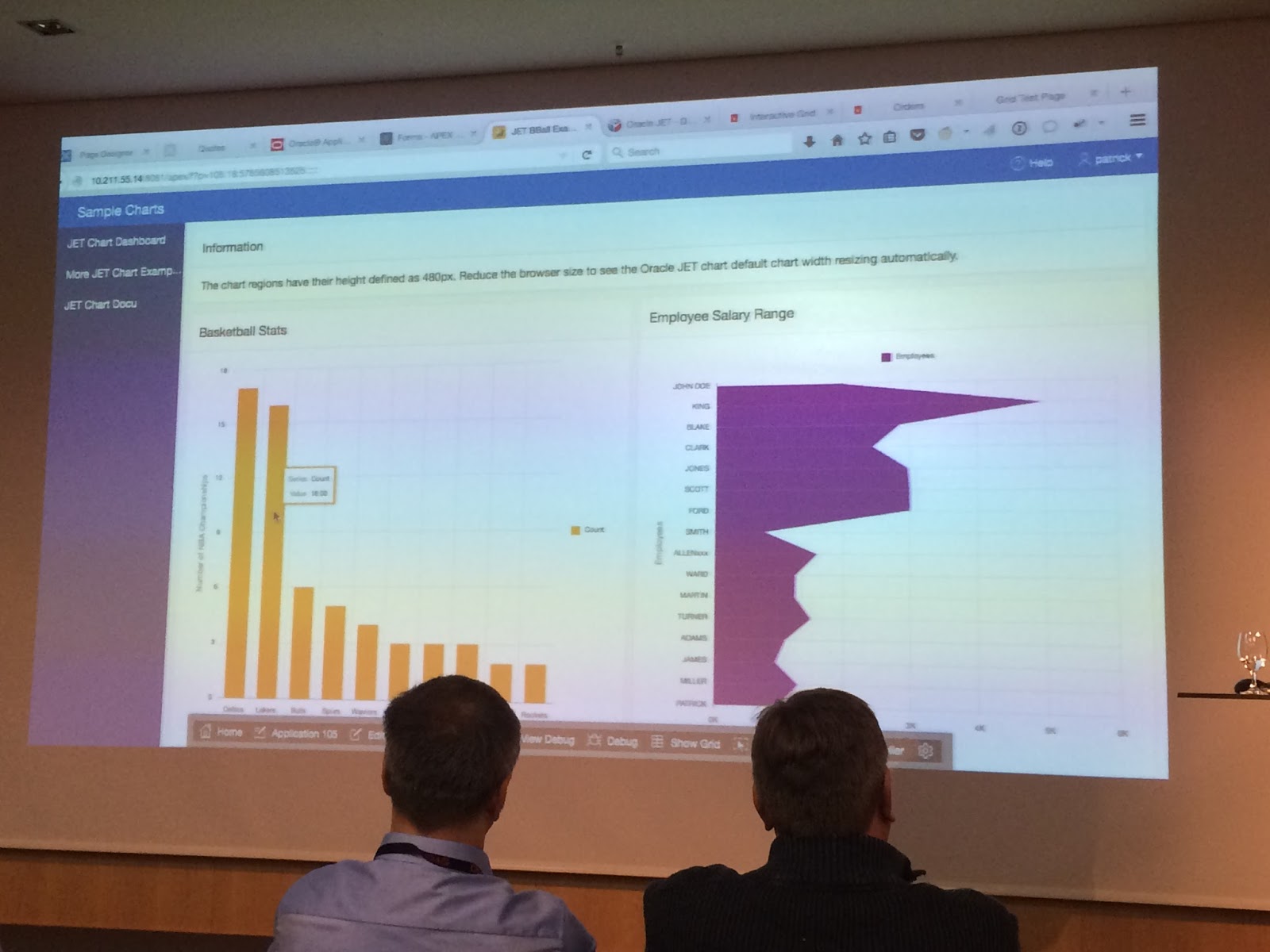
Most time was spent showing the new Interactive Grid. The Interactive Grid will be a, loosley speaking, combination of an Interactive Report and a Tabular form. The menu from the Interactive Report also gets a make over. The functionality to format the result set (like pivot, group by) will be taken out of the action-menu and will get its own button next to the search bar.

Initially the Interactive Grid will be read only (like the Interactive Report) and can be set to allow data changes. As a developer you can specify which operations are allowed and add authorization to each of the DML. What is really neat is that you can also specify which column can be edited.
From a right click menu in the Interactive Grid several actions can be performed like adding or removing a row.

It is also possible to specify what item type will need to be used when you edit the field.

After this demo, Patrick showed the master-detail functionality, which also allows editing in the master and the detail. He described that only the changes are sent to the database when the save button is pressed.

Of course the new charting engine was also shown and emphasized that not all chart-types available in Oracle JET will be created in APEX through a declaritive wizard.
In case you hadn't heard: the new charting engine for APEX will be using Oracle JET.
What surprised me was that Patrick mentioned that some charts in the JET toolkit don't offer the functionality which is currently provided in AnyChart (the current charting engine) and that in some cases they will continue to use AnyChart for those components. If I remember correctly this was the case for the maps. The European maps aren't as detailed as the APEX team would like them to be, but who knows by the time that APEX 5.1 is ready for release the JET charts might be up to par.

Declarative column group headers, the ability to move columns and creating an overflow report (just like the ones that you know from Oracle Forms) were also briefly demonstrated by Patrick.
All in all, a great last session showing a glimpse into the future of Oracle APEX.
Of course all of what is shown might not be in APEX 5.1, the first slide (after the title slide) was Oracle's safe harbor statement.

17 April 2015

APEX 5: forgot the images?

On my play environment I usually use Oracle APEX with the Embedded PL/SQL Gateway, just because it's so easy.
When a new version of APEX is released, just like everybody else, I upgrade my play environment.
After the apexins.sql script is run, I always want to start playing with it immediately. Usually it is at this point where I just see a blank page... scratching my head wondering why it is not running,... having to go back to the documentation to realise I forgot the last step - configure the EPG...
Now with APEX5 an alert is shown when you forget the last step:

Immediately you know what to do... :)
Another one of those little enhancements that makes APEX5 simply awesome.

03 March 2015

APEX: Active Tabs Based on Page Groups

Recently someone asked me: "How did you do that? When I include an APEX page in a Page Group, the correct tab is automatically highlighted"
When I setup an application, I usually use Dimitri Gielis' method, so instead of using "real tabs", I use a List and display that list as Tabs.
For each of the "Tabs", I also create Page Groups, just to keep things organized.
Each of the List Entries will have a PL/SQL Expression for "List Entry Current for Pages Type" based on the Page Group that the "Tab" should be active.
The function queries the APEX Repository, and more specifically APEX_APPLICATION_PAGES.
function page_in_group(
         p_app_id     in number ,
         p_page_id    in number ,
         p_page_group in varchar2 )
   return boolean
is
   l_retval boolean;
   l_dummy  number;
begin
   begin
       select 1
         into l_dummy
         from apex_application_pages
        where application_id = p_app_id
          and page_id            = p_page_id
          and page_group         = p_page_group;
       l_retval := l_dummy = 1;
   exception
      when no_data_found then
         l_retval := false;
   end;
   return l_retval;
end page_in_group;
Placing the Page in the correct Page Group will now "automatically" highlight the correct "tab".

23 September 2014

"Busy Button" with APEX5, jQuery and Font Awesome

Both jQuery and Font Awesome are standard included with APEX5 (still in early adopter). With a little bit of jQuery you can create an animated button that reflects that it is doing something in the background.
For this example I created a button "Text + Icon button". Simply drag and drop this in the Page Designer.
The Icon CSS Class: "fa-play-circle-o"
and the action: "Defined by Dynamic Action"
For the Dynamic Action: it should respond to the button click (of course)
Choose: Execute Javascript and enter:

$(this.triggeringElement).prop('disabled', true)
                         .children('span')
                         .toggleClass('fa-repeat')
                         .toggleClass('fa-spin')
                         .toggleClass('fa-play-circle-o')
                         ;

Add another TRUE action to the Dynamic Action, for my example I'll use "Execute Javascript" and enter:

alert ('You clicked the button, now it looks busy');

The third TRUE action for the Dynamic Action, also "Execute Javascript" will reset the button to the way it was:

$(this.triggeringElement).prop('disabled', false)
                         .children('span')
                         .toggleClass('fa-repeat')
                         .toggleClass('fa-spin')
                         .toggleClass('fa-play-circle-o')
                         ;

See an example here: Early Adopter APEX; login with "demo" and password "demo".

22 September 2014

Dynamic Action in Report - APEX5 version with Font Awesome

Almost two years ago, I wrote a little blog on how to trigger a Dynamic Action from a report. You can find that blog right here.
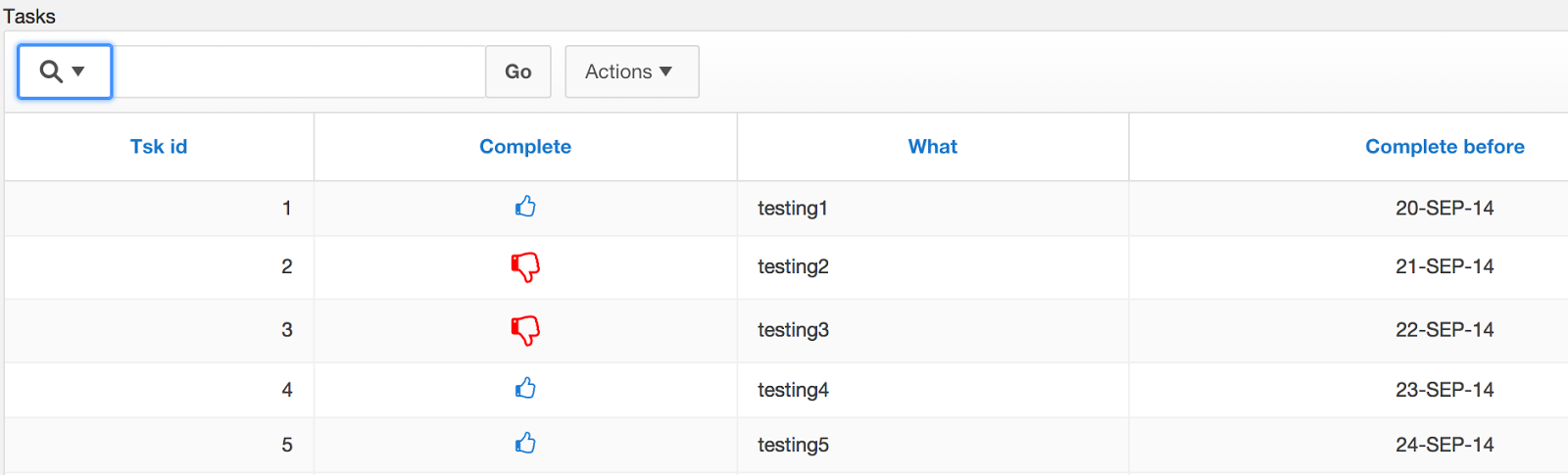
Things have changed with APEX5 (which is currently still in "early adopter 2") which allow you to do this in a more clean way (or at least I think so). No need to create a "fake link" so the user know that the icon is clickable. No need to upload your own images, use the already shipped Font Awesome library.

Based on that old blogpost I reused the same table structure and the same PL/SQL procedure. The only change I made was to the query on which the report is based:

select id tsk_id
      ,case ind_complete
       when 'Y' then 'up'
       when 'N' then 'down'
       end ind_complete
      ,what
      ,complete_before
  from tasks
Instead of "ok" and "nok" for the "IND_COMPLETE" column, I am using "up" and "down". These names will be used to get the correct Font Awesome icon. If you want to use different icons, check the Font Awesome Cheatsheet, version 4.0.3 (the version currently used by the early adopter.

Instead of having to create a Link Column, linking to a dummy page like Page 0, the IND_COMPLETE column can stay a "Plain Text" column.
Adjust the HTML expression for that column to:

<span class="t-Icon fa-thumbs-o-#IND_COMPLETE# setComplete" id="#TSK_ID#" style="cursor: pointer;" ></span>
The class added to the IND_COMPLETE column will contain the reference to the Font Awesome icons you want to show. The class "setComplete" is there to have the Dynamic Action fire when the column is clicked. The id reference is there, so the Dynamic Action will know which ID to update in the table. Finally styling the cursor so the user will know that the icon is clickable.

Next the Dynamic Action. The Dynamic Action is basically the same as in the original version:

  1. Set the value of the clicked element in a hidden item
  2. Execute the stored Procedure
  3. Refresh the report
As far as the last point goes, there was a comment in the original blog which suggests using the "Submit Page" action because the pagination will return to the first set. I found a plugin to do a refresh which remembers the pagination, unfortunately it doesn't play well with APEX5.

And just for fun, add some CSS styling at page level:

.fa-thumbs-o-up{
  color: #2580D4;
}

.fa-thumbs-o-down {
  color:red;
  font-size: 20px;
}
That will really make the Font Awesome icons stand out :)

I put a small demo on the Early Adoptor site.

17 September 2014

Multirecord Master-Detail Report

A common requirement is to show a Master-Detail Report where both the Master as well as the Detail Report show multiple records. When you click on one of the Master records, the connected detail records are shown as well.
This is very easy to accomplish with a Hidden item and a Dynamic Action.
First the Master Report, for this example I am using the DEPT table:
select d.deptno
      ,d.dname
      ,d.loc
  from dept d
The detail report will consists of the employees which belong to the DEPT record which is clicked by the user.
select * from emp
 where deptno = :P9_DEPTNO
You will notice that there is a reference to P9_DEPTNO in the query, that will be the hidden item.
So there are two reports and a hidden item on the page.
The user will need to click on something, so the DEPTNO column from the first report will act as a link. Navigate to the column and fill in the section labelled "Column Link".
For the Link attributes fill in the following information:
 
onclick="return false;" class="show-employees" id="#DEPTNO#"
Now all components are in place, time to create the Dynamic Action.
The Dynamic Action will respond to a click on the master report(DEPT). The link column has a class attribute of "show-employees" which act as the jQuery Selector. Fill in the details when the Dynamic Action needs to fire as follows:
What does the Dynamic Action need to do? First it needs to set the value of the clicked DEPTNO in the hidden item. This can be done with a little bit of javascript:
apex.item( "P9_DEPTNO" ).setValue( this.triggeringElement.id );
The second part of the Dynamic Action is to refresh the Employees report. Add a TRUE action to the Dynamic Action where you specify "Refresh Region" and choose the details report (Employees).
You can find the demo right here.

28 July 2014

APEX 5: Using Font Awesome Icons in Report

APEX 5 is currently in Early Adaptor 2, so the exact implementation of this blogpost might change when APEX 5 goes GA.
Font Awesome is standard included with APEX 5 and you can use the icons on buttons, there is a special property for that.
I was playing around the other day and I wanted to include some Font Awesome icons in my report.
First create a report (classic or interactive, whatever you want) and use the following query:
select empno
      ,case mod (rownum, 2)
       when 0 then 'male'
       when 1 then 'female'
       end gender
      ,ename
      ,job
  from emp
Because the EMP table doesn't have a gender column, I decided to create one using a CASE statement. Some are "male" and some are "female".
Navigate to the GENDER column.
With the GENDER column highlighted, move your attention to the right side of the Page Designer and focus on the Properties panel.
In the section labelled "Column Formatting", enter the following for "HTML Expression":
<span class="t-Icon fa-#GENDER#"></span>
The names of the font awesome icons always start with "fa-", so this is prefixed to the content of the GENDER column. The result of a "female"-rows will be
<span class="t-Icon fa-female"></span>
For "male"-rows it will be
<span class="t-Icon fa-male"></span>

And that's it.
The report will look like the screenshot below. As you can see there are icons for the males and the females in the EMP table.

01 July 2014

APEX_ESCAPE, a new (and better) way of HTF.ESCAPE_SC

Last week, at the yearly ODTUG Kscope Conference, I did my presentation "Getting Started with APEX Plugin Development". After the session Patrick Wolf, Principal Member of Technical Staff for APEX, pointed out an improvement that could be made.
In the presentation I point out the need to escape the input that you get from a user of the plugin in order to protect the plugin from unwanted use, like SQL Injection, Cross Site Scripting and the like.
In the example plugin that is created in the presentation, I use HTP.ESCAPE_SC to escape the special characters (hence the name _SC). There is a newer and better method to escape the special characters.
By default the extended level of escaping is enabled, but this can be overridden (for whatever reason).
To illustrate both the extended and the basic level of escaping, the examples below set the level explicitly.
SQL> begin
  2     apex_escape.set_html_escaping_mode (p_mode => 'E');
  3  end;
  4  /

PL/SQL procedure successfully completed.

SQL> select sys.htf.escape_sc ('hello &"<>''/') htf
  2       , apex_escape.html ('hello &"<>''/') escape
  3    from dual
  4  /

HTF                            ESCAPE
------------------------------ ----------------------------------------
hello &amp;&quot;&lt;&gt;'/    hello &amp;&quot;&lt;&gt;&#x27;&#x2F;
With the extended level of escaping, the forward slash and the single quote are escaped as well.
When you set the escaping level to Basic (example below), you will get the same results as if you were using HTF.ESCAPE_SC.
SQL> begin
  2     apex_escape.set_html_escaping_mode (p_mode => 'B');
  3  end;
  4  /

PL/SQL procedure successfully completed.

SQL> select sys.htf.escape_sc ('hello &"<>''/') htf
  2       , apex_escape.html ('hello &"<>''/') escape
  3    from dual
  4  ;

HTF                            ESCAPE
------------------------------ ----------------------------------------
hello &amp;&quot;&lt;&gt;'/    hello &amp;&quot;&lt;&gt;'/

Links

Documentation on APEX_ESCAPE

26 June 2014

ODTUG Kscope 2014: Wednesday

The morning started nice, ODTUG organized breakfast with country themes. There were tables for Australia, Canada and The Netherlands. If you are Dutch you might have expected to have hagelslag or cheese, this was not the case. It was a nice and hearty American style breakfast, eggs, bacon, potatoes.
The first session of the day that I went to was by Nathan Catlow on Oracle APEX Security, an interesting topic.
Nathan pointed out that by far the most common security has to do with Cross Site Scripting (XSS). This can lead to data protection issues, account compromise and attack of other applications.
Regarding injection attacks, Nathan pointed out that substitution variables (&P...) in comments are also prone for Injection attacks.
Very good advise to upgrade to at least APEX 4.2.1. There are vulnerabilities in the APEX framework which are fixed in this release.
The next session was another one on APEX Security by Tim Austwick, this time with a focus on SQL Injection.
Lots of practical information regarding SQL Injections. After listening to this, it makes you wonder how secure applications are. On the other hand it is good to known that I implement loads of their advise already. :)
"Pins Polygons and Perspectives: Visualizing Geographic Data in APEX" by Christoph Ruepprich was next.
One of the mapping apis that I never heard of was LeafletJs. Looks really nice, yet another thing to put on my to-do list.
After lunch I attended Jonathan Lewis' session on the Cost Based Optimizer for Developers. The session was very well attended and the content was superb.
According to Jonathan Oracle must obey your index hints, but only if you get it absolutely correct. If you tell the wrong path, you left out information (hint missing) or if you tell Oracle to do something "illegal" than Oracle will not follow your hints.
John Scott did a presentation about NodeJs. You can expect to see a lot of demos when John does a presentation and this time was no exception. Besides the installation of NodeJs, he also installed node-oracle for the connection to the database.
Demos included Grunt, Mail-listener2, Officegen and pdfkit. In one word: awesome.
The last session of the day: Dimitri Gielis on his way of developing APEX applications. A very useful tip that Dimitri shared was to create a template application so you can have a nice starting point for the application. You define the basic building blocks (like global page, lists, administration page, include font-awesome) and export the application. Then go to the internal workspace and add this application as template application.

Tonight there is the traditional party, this time it will be at the Seattle EMP (experience music project). Just realized that there is an Oracle link there... (emp as the table in the Scott demo schema - just the geek in me I guess). ODTUG has a reputation to uphold regarding the parties, so I expect a lot from it.

25 June 2014

ODTUG Kscope 2014: Tuesday

Mark Drake, the product manager for XMLDB and the new JSON features in the database, started Tuesday with a session on flexible storage.
After a short history of the XMLDB ("more than just a LOB Store"), he went to the heart of the presentation: flexible storage.
In the upcoming release of the database there will also be JSON functionality built in. The JSON functionality won't have a separate datatype. By not introducing a separate JSON datatype the implementation of replication and high availability won't be as hard to implement as with the XMLType. On the other hand, it is harder for the API to figure out which datatype it should project to.
There are several ways to implement flexibel storage, like:
  1. flex-fields
  2. document persistence
  3. name value pairs
With flex-fields you have no way of knowing the content of the data by looking at the datamodel. By using document persistence you would implement this with content stored as XML or JSON.
Some problems can be solved when you represent name value pairs as XML. This solution was described in detail, including indexing strategies.
Right before lunch I did my session "Getting started with APEX Plugin Development". There were about 45 people in the room and I think the session went allright. After the session I had lunch with Patrick Wolf and we were going over some of the different aspects of the plugins and he gave me a few good pointers. More stuff to play with and figure out how they work.
OTN (Oracle Technology Network) sponsored a lunch and learn session. In a packed room there were some very good questions and answers.
Dietmar Aust covered some "small" features of APEX 5. This time the "Page Designer" was not the main focus of the presentation, which was a big part in other sessions on APEX 5. Instead Dietmar discussed the change in the export functionality, the different ways modal pages can be created and session joining, just to name a few.
Not new in APEX 5, but might be useful: APEX_MAIL.GET_IMAGES_URL and APEX_MAIL.GET_INSTANCE_URL. Go find more about this in the documentation.
Instead of using the v-function, use the context functions like SYS_CONTEXT ('APEX$SESSION', 'app_user') to get information about the APEX context.
There is also a extended method to escape substitution variables, e.g. &P16_EMP_NO!JS. He promised that he will blog about it.
There is a new APEX_ZIP package which is based on the AS_ZIP package, created by my former colleague Anton Scheffer. There will also be an APEX_JSON package with lots of functionality.
Finally there is an alias APP_PAGE_ALIAS, long overdue.
Next up Peter Raganitsch on things you can learn from the Packaged Applications which are created by Oracle. A lot of very nice plugins are hidden inside these packaged applications.
Peter also demonstrated a method of installing packaged applications using the command line as opposed to using the wizards. Unfortunately using the command line doesn't install the supporting objects, so the application doesn't work. This still needs to be done using the regular method in the builder. So how did he got it to work? He imported the APEX Builder (which is just an APEX application after all) and found the wizard which install the supporting objects.... just don't do it, there are some undocumented API's being used.
As there are a lot of plugins (around 50) in the packaged applications, Peter also demonstrated a way to export these by utilising the java command line tools (APEXExport and APEXExportSplitter) to export and split the applications.
The final session of the day that I attended was by David Mann: "Time for some New Graphs: Incorporating Time and Animation Elements in your Web App Visualizations".
David showed different types of visualisation, some very funky ones, some very useful. He showed some demos using D3. Personally I had never heard of D3, so definitely something to play with in the near future (at least I hope near future).
At night the Oracle ACE program organized an ACE Dinner. It was at the Pike Brewery, needless to say there was some beer involved with a very nice meal.

ODTUG Kscope 2014: Monday

Monday morning started with the opening keynote. At the same time the Dutch soccer team played Chile (which the Dutch won with 2-0). A small Dutch delegation went to watch the game, all dressed in orange, I was one of them.
During the keynote the location of Kscope 2015 was announced: Hollywood, Florida.
Lunch was special, there were lunch and learn. There were "reserved" tables were you could sit on and talk tech with ACE Directors. We had some nice discussions at the table that I sat on, including the soccer game.
After lunch I went to see a session by Kris Rice on the Oracle Rest Data Services (formely known as the APEX Listener) Best Practices and Features.
The first (and the last) thing he pointed out that should must change the following settings:
  1. Configure database connection pool
  2. set max size
  3. set initial size
  4. set timeouts
Kris also spend some time on ICAP which stands for Internet Content Adaptation Protocol. This will scan all file uploads for viruses before it reaches the database. They needed that for the Oracle Cloud services.
In the APEX Listener you could use PL/SQL for URL validation, nowadays you can also use Javascript for these validations. Even though the demo didn't go as smoothly as Kris would have wanted to, the point was clear. There is no database hit, it is handled in the ORDS.
The Rest filtering option looks really interesting. With these rules you can add filtering options before you do down to the database. Definitely something I need to look into more closely, it sounds very interesting.
There is also a way to log all PL/SQL call and the bind variables, there is a sample_capture.sql (somewhere). It needs to have a certain signature which is specified in that sample script.
For version 3.0 there are a lot more features coming, like "Simplified Installation", "Client REST Filtering", "Bulk CSV Loading over REST", "Database 12.1.0.2 JSON Collections", a "New Plugin framework", and more...
The next session I went to was another one by Kris Rice, this time it was about "Creating RESTful APIs with Oracle Application Express Listener".
There are over 40 internal group at Oracle defining the REST standard. This means that if you know and understand how to interact with REST and ORDS, you also know how to interact with REST and Fusion.
After an introduction about what REST Data Services is all about, Kris continued with lots of demos including "SQL Injection as a Service".
In ORDS version 3.0 you can "REST enable" the table with a single click from SQLDev - very cool.
The final (regular) session of the day was by John Scott on "Testing APEX: removing the Boring from Testing".
He started of by comparing testing to Marmite, you either love it or you hate it.
The most fundamental of tests is Unit Test, followed by Integration Tests. Above that are Functional Tests and finally the Acceptance Tests.
John covered NodeJs, PhantomJs, CasperJs, SlimerJs and TrifleJs to help with testing. He did the demos with CasperJs.
He made a good point, and I am really interested in trying out CasperJs to do some testing.

24 June 2014

ODTUG KScope14 Sunday APEX Symposium

The ODTUG Kscope conference always starts with a full day symposium. There are several specialized tracks going on, and I attended the APEX track (mainly).
The room was packed, I would estimate around a 175 delegates.
Joel Kallman started the day with an overview of the history of APEX, including a video of Steve Balmer being very enthousiastic about APEX. He also told a bit about the background and how some features evolved throughout the years, like Themes and lessons learned with the packaged applications.
Joel showed a couple of videos demonstating the Page Designer vs. the current wizard driven style of development. Loved the new video with the song "Everything is Awesome" to show of the productivity-boost by using the Page Designer in APEX 5.0.
Deployment also gets easier with APEX 5. Now you can associate the database objects with your application. The DDL is then generated, so you don't have to go to external tools to get the DDL.
Joel also shared a story on the usage of APEX as mission critical application. There was a large customer who experienced a production outage on a mission critical application after an upgrade. Turned out to be a database bug (outline),but it shows that APEX is being used by large organizations and in mission critical applications.
One of the last things Joel shared was that APEX will get more marketing in the future to get more companies using APEX.
Next up Patrick Wolf about the Page Designer. The demo's that Patrick did really showed how the Page Designer improves developer productivity.

After lunch Shakeeb Rahman gave some insight in the process that was taken by the redesign of APEX 5. He also spend a good amount on the Universal Theme, especially on Theme Styles and Template Options.
Without touching any HTML create a new look for your applications by using Template Options, very flexibel. Just by changing some options, you can change your applications dramatically
Font Awesome is included standard, 400 icons to choose from which can be easily incorporated. For now there is no quick-pick available, but a future release might include that as well.
All the templates and regions will be shown in a sample application,like the eight permutations of a list template. Unfortunately this sample application is not yet available.
With Theme Styles it simply a flip of a switch to change the color scheme of your application. Currently Universal Theme 42 comes with Blue (Default) and Red.
One more thing: Universal Theme Roller, and again the song "Everything is Awesome" is played.
The Universal Theme Roller works (more or less) like the jQuery Themeroller, but now on your own application. Of course Shakeeb picked Orange for the demo. The changes made in the Universal Theme Roller popup where shown live in the application (using Less) and the setting stored in the browser.
The CSS can be saved to a file and included in your application. Hopefully there will be a possibility to save the CSS directly in your application.
The Universal Theme Roller is not available in the EA2, but they are working hard on it to include this.
Jason Straub did a presentation on APEX and the Multitenant Architecture of the 12c Oracle Database. This session was at the same time that the USA played Portugal in the world cup, still the room was quite busy.
The session started with an overview of the Multitenant Architecture, followed by all the different options that you have were to install APEX. There are a lot of different scenarios with copying and moving PDBs between different Oracle 12c databases. Thankfully Oracle provides a lot of scripts which help you with all of these scenario's.
And that wraps up the first day of ODTUG KScope14.