Showing posts with label Font Awesome. Show all posts

23 September 2014

"Busy Button" with APEX5, jQuery and Font Awesome

Both jQuery and Font Awesome are standard included with APEX5 (still in early adopter). With a little bit of jQuery you can create an animated button that reflects that it is doing something in the background.
For this example I created a button "Text + Icon button". Simply drag and drop this in the Page Designer.
The Icon CSS Class: "fa-play-circle-o"
and the action: "Defined by Dynamic Action"
For the Dynamic Action: it should respond to the button click (of course)
Choose: Execute Javascript and enter:

$(this.triggeringElement).prop('disabled', true)
                         .children('span')
                         .toggleClass('fa-repeat')
                         .toggleClass('fa-spin')
                         .toggleClass('fa-play-circle-o')
                         ;

Add another TRUE action to the Dynamic Action, for my example I'll use "Execute Javascript" and enter:

alert ('You clicked the button, now it looks busy');

The third TRUE action for the Dynamic Action, also "Execute Javascript" will reset the button to the way it was:

$(this.triggeringElement).prop('disabled', false)
                         .children('span')
                         .toggleClass('fa-repeat')
                         .toggleClass('fa-spin')
                         .toggleClass('fa-play-circle-o')
                         ;

See an example here: Early Adopter APEX; login with "demo" and password "demo".

22 September 2014

Dynamic Action in Report - APEX5 version with Font Awesome

Almost two years ago, I wrote a little blog on how to trigger a Dynamic Action from a report. You can find that blog right here.
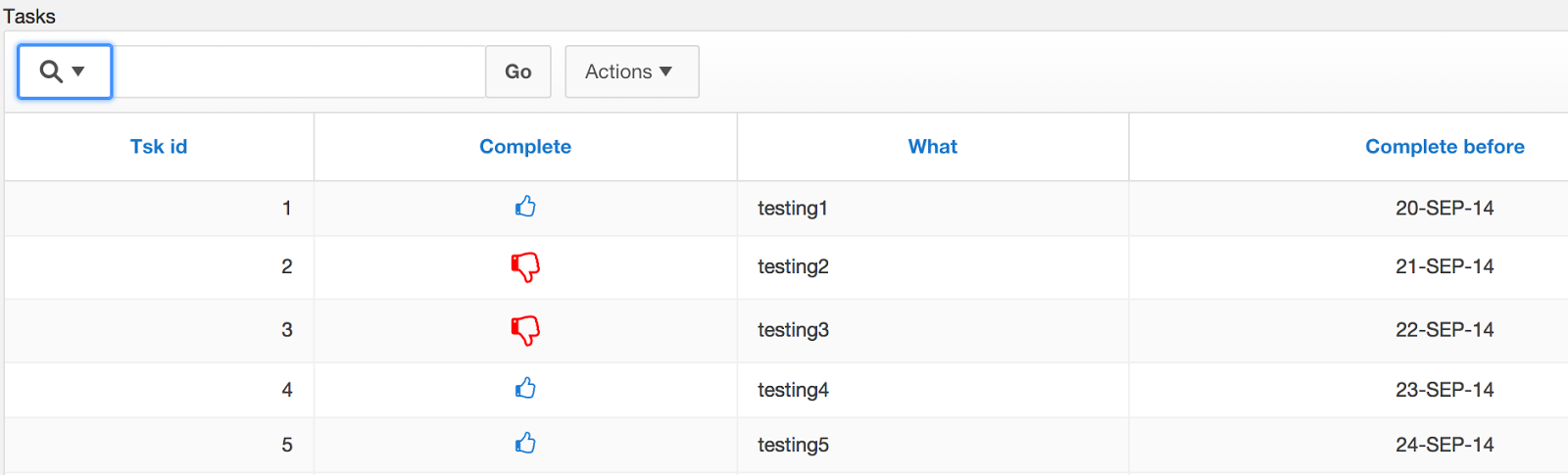
Things have changed with APEX5 (which is currently still in "early adopter 2") which allow you to do this in a more clean way (or at least I think so). No need to create a "fake link" so the user know that the icon is clickable. No need to upload your own images, use the already shipped Font Awesome library.

Based on that old blogpost I reused the same table structure and the same PL/SQL procedure. The only change I made was to the query on which the report is based:

select id tsk_id
      ,case ind_complete
       when 'Y' then 'up'
       when 'N' then 'down'
       end ind_complete
      ,what
      ,complete_before
  from tasks
Instead of "ok" and "nok" for the "IND_COMPLETE" column, I am using "up" and "down". These names will be used to get the correct Font Awesome icon. If you want to use different icons, check the Font Awesome Cheatsheet, version 4.0.3 (the version currently used by the early adopter.

Instead of having to create a Link Column, linking to a dummy page like Page 0, the IND_COMPLETE column can stay a "Plain Text" column.
Adjust the HTML expression for that column to:

<span class="t-Icon fa-thumbs-o-#IND_COMPLETE# setComplete" id="#TSK_ID#" style="cursor: pointer;" ></span>
The class added to the IND_COMPLETE column will contain the reference to the Font Awesome icons you want to show. The class "setComplete" is there to have the Dynamic Action fire when the column is clicked. The id reference is there, so the Dynamic Action will know which ID to update in the table. Finally styling the cursor so the user will know that the icon is clickable.

Next the Dynamic Action. The Dynamic Action is basically the same as in the original version:

  1. Set the value of the clicked element in a hidden item
  2. Execute the stored Procedure
  3. Refresh the report
As far as the last point goes, there was a comment in the original blog which suggests using the "Submit Page" action because the pagination will return to the first set. I found a plugin to do a refresh which remembers the pagination, unfortunately it doesn't play well with APEX5.

And just for fun, add some CSS styling at page level:

.fa-thumbs-o-up{
  color: #2580D4;
}

.fa-thumbs-o-down {
  color:red;
  font-size: 20px;
}
That will really make the Font Awesome icons stand out :)

I put a small demo on the Early Adoptor site.

28 July 2014

APEX 5: Using Font Awesome Icons in Report

APEX 5 is currently in Early Adaptor 2, so the exact implementation of this blogpost might change when APEX 5 goes GA.
Font Awesome is standard included with APEX 5 and you can use the icons on buttons, there is a special property for that.
I was playing around the other day and I wanted to include some Font Awesome icons in my report.
First create a report (classic or interactive, whatever you want) and use the following query:
select empno
      ,case mod (rownum, 2)
       when 0 then 'male'
       when 1 then 'female'
       end gender
      ,ename
      ,job
  from emp
Because the EMP table doesn't have a gender column, I decided to create one using a CASE statement. Some are "male" and some are "female".
Navigate to the GENDER column.
With the GENDER column highlighted, move your attention to the right side of the Page Designer and focus on the Properties panel.
In the section labelled "Column Formatting", enter the following for "HTML Expression":
<span class="t-Icon fa-#GENDER#"></span>
The names of the font awesome icons always start with "fa-", so this is prefixed to the content of the GENDER column. The result of a "female"-rows will be
<span class="t-Icon fa-female"></span>
For "male"-rows it will be
<span class="t-Icon fa-male"></span>

And that's it.
The report will look like the screenshot below. As you can see there are icons for the males and the females in the EMP table.